
13: In Top <Form>
 Learning Target
- Use the <form> tag to gather and perform actions on information
 Resources
HTML Tag Reference
These tags are frequently used with the form tag:
 Instructions
Step 1:
-
- Create a new folder for this project in your H: drive.
- Inside this folder create a new file called index.html.
- Create a subfolder called images.
Note: We avoid using spaces in file names and folder names on the web. Spaces are converted to %20 in a URL which looks messy. Use underscores or dashes instead.
Step 2:
Design a webpage containing a contact form where people can give you feedback about your website.
Your form should request at least 2 of these:
-
- name
- email address
- country
- phone number
Your form should allow the user to choose from 2 or more possible options. For example:
-
- Subscribe (or not)
- Remember me (or not)
Your form should also request both of these:
-
- subject
- message
Your form will also need at least these two buttons:
-
- Reset
- Submit
Step 3:
Add some elements that improve the professional appearance of your form page:
-
- A heading
- Some explanatory text
- An image (be sure to place it in the images folder)
Step 4:
Set the action for your page to this address: https://dynamic.mrhelland.com/formcheck/index.php. For now, set the method to post.

This address will open a page that shows exactly what information is gathered and sent by your form.
Step 5:
Enter test information and then hit your submit button. Be creative with your responses, but they should be school appropriate.
Take a screenshot showing what you get. Here is a blank example:
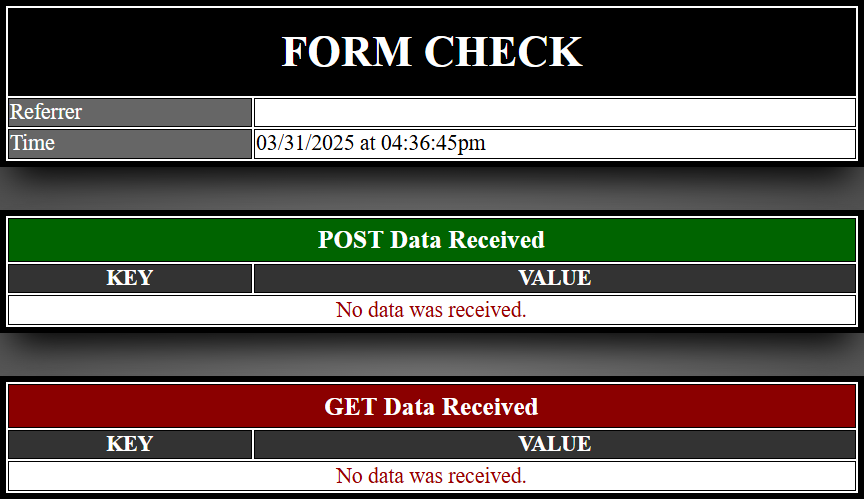
Step 6:
Change your pages method to get.

Enter test information and then hit your submit button. Be creative with your responses, but they should be school appropriate.
Take a another screenshot showing what you get. Here is a blank example:
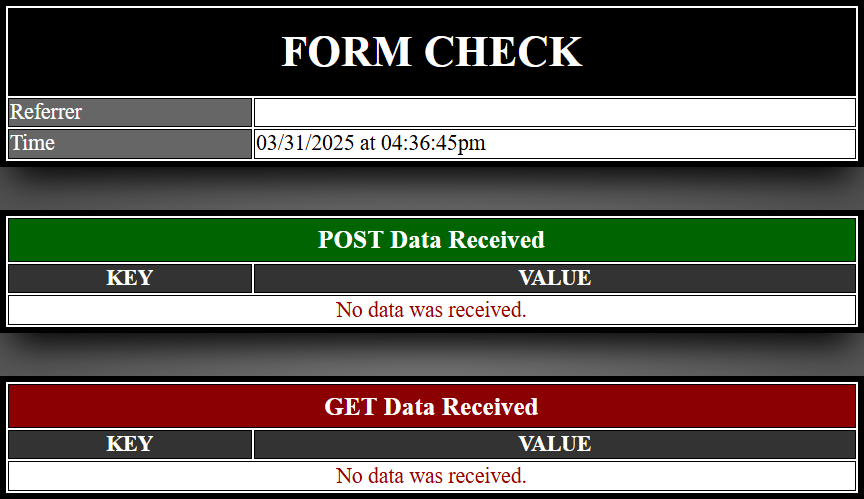
Step 7:
Do each of these steps before submitting your work:
-
- Test your website thoroughly
- Compare your work with the grading rubric
- Create an archive of your website folder (e.g. zip or 7z)
Challenges:
-
- Use CSS styles to give your pages a consistent style (you want them to be unique to you, but appear as if they are from the same website).
- Add additional input options to your form.
- Add form validation. There are a couple common ways to do this:
-
-
- Use Attributes: Use the pattern attribute to require a certain format.
The messages will be fairly generic. For example: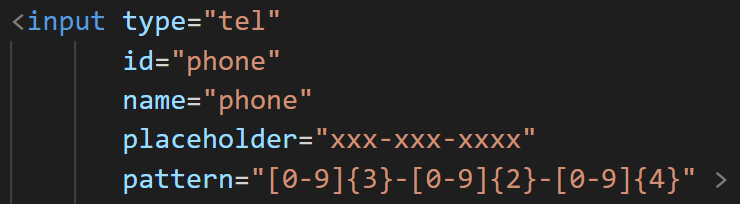
- Use Scripting: Use Javascript to customize the validation of information.
You can see a basic example of this here: https://www.w3schools.com/js/js_validation.asp
- Use Attributes: Use the pattern attribute to require a certain format.
-
 Grading
| Your submission... | Your grade... |
|---|---|
|
Extended
|
A+ |
|
Exceptional
|
A |
|
Good
|
B |
|
Reasonable
|
C |
|
Needs Improvement
|
D |
|
Insufficient
|
F |
| Scores may be rounded to the nearest whole number. | |