
06: First Steps with GDevelop
 Learning Target
- Explore major components of the GDevelop interface
 Vocabulary
Look for these words or concepts as you explore GDevelop:
|
|
|
|
 Instructions
Step 1:
Open the GDevelop editor from the desktop or the Windows search bar.
Step 2:
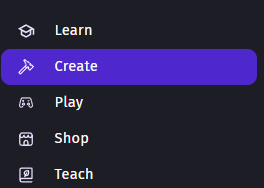
Choose the Create menu option.
Step 3:
Create a new game.
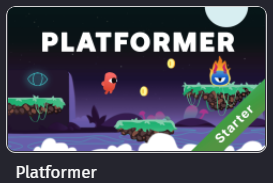
Choose the Platformer game template.
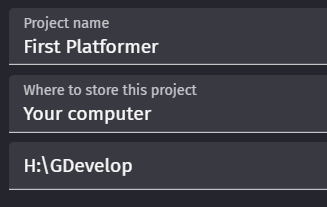
Be sure to choose your computer as the save location and change the folder to a new folder in your H: drive. For example:
It may take up to a minute to download all of the project resources.
Step 4:
Click on objects and explore the editor's interface. Find where the vocabulary terms or quantities listed above appear or can be changed.
Note: To see some of these, you will need to select an object in the scene! Others, you may need to hover over a box to know what it's name or purpose is.
Step 5:
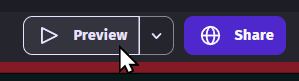
Play the game by using the Preview button that looks like this:
Step 6:
Answer the questions below (see Submission instructions).
Tip: If you accidentally close the scene, you can reopen it by opening the Project Menu with the icon in the top left corner.

Then, click on the name of the scene.