
08: A Mazing Puzzle (Part 2)
 Learning Target
- Add components and scripts to a GameObject
- Parent objects to each other
- Configure first person motion
 Resources
📄 FPS Script:
https://moodle45.mrhelland.com/pluginfile.php/351/mod_assign/intro/FPSController.cs
You can take a look at the code to see how it works.
 Instructions
Step 1:
Create a new sphere or capsule to represent the player. You should be able to remove the collider for the player entirely.
Step 2:
Add a Character Controller component to your player object.
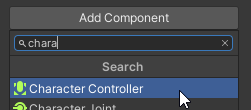
Adjust the radius of the controller's collider so that it fills most of the space between the walls.
NOTE: Be sure to leave some space or the player may pop through the walls or get stuck.
Step 3:
Parent the Main Camera to your player.

Rename the Capsule to Player so that its purpose is clear.
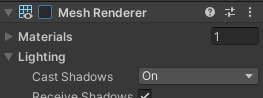
The player may interfere with the camera. To make the player object completely invisible, turn off or remove its Mesh Renderer.
Step 4:
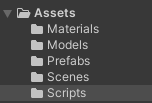
Create a Scripts folder in your project assets. Download the FPSController script and drop it into this folder.
Add the FPSController script to your player object (not the camera).
Step 5:
Be sure to configure the settings of the FPS Controller. Most importantly, the Main Camera needs to be dropped into the Player Camera slot.
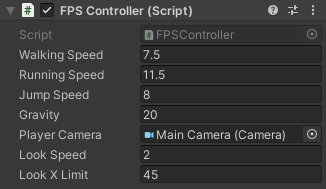
You will very likely need to change some of the settings to work with your particular maze layout. Be sure to change them while the game is not running or the changes will not be saved.
Step 6:
You will need to remove the joystick controls that are automatically created by Unity with every project. Otherwise, your player will move on its own. Find the Horizontal and Vertical components that are connected to a Joystick Axis. Don't remove those that are connected to a Keyboard or Mouse.
Step 7:
Be sure to test the script settings and player scale before submitting your assignment. The controls should be:
-
- Intuitive
- Easy to control
- Capable of reaching all parts of the maze
- Avoid clipping through the maze walls/floor
 Grading
For grades A to D, all requirements need to be met for that grade band.
| Player Movement | Letter Grade |
|
Meets these criteria:
|
A |
|
Meets these criteria:
|
B |
|
Meets these criteria:
|
C |
|
Meets this criteria:
|
D |
| Reassigned |