10: A Mazing Puzzle (Part 4)
 Learning Target
- Add objects that can be collected
- Add objects that indicate a state
 Resources
Starter Models:
Starter Scripts:
-
- Collectible.cs - Causes a collectible to rotate and hover
- IndicatorLight.cs - Controls an indicator light's state
- ActivateIndicator.cs - Add to an object with a trigger to change an indicator's state
 Instructions
Step 1:
Import the bread and indicator models (or different models) to use as the shape of your collectible and indicator lights.
Add at least three new materials to use with your your collectible and indicator light.
Step 2:
Import the starter script called Collectible.cs. You can add additional features to this script, but it should support at least the features that are already present.
You'll need to:
-
- Add some variables
- Create a rotation vector and use it to rotate the collectible
- Make the object disappear when you collide with it
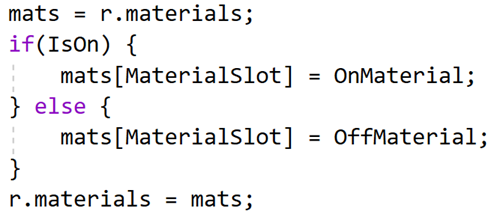
Also, import the script called IndicatorLight.cs. You will need to fill in some missing information. Try to do it yourself, but if you are having a challenge, scroll down to the bottom of the page.
Step 3:
Create a new prefab for your collectible and indicator light. Be sure to attach the corresponding script to each prefab.
Add at least one collision box to your indicator prefab. Be sure to set it as a trigger.
Step 4:
Add collectibles and indicators to your scene.
Step 5:
Be sure to test your collectibles and indicator lights.
Challenges:
You can expand your maze game in a couple different ways.
-
- Add a scoring or monetary system
- Add different types of collectibles with differing score values
 Grading
For grades A to D, all requirements need to be met for that grade band.
| Indicators and Collectibles | Letter Grade |
|
A+ |
|
A |
|
B |
|
C |
|
D |
| Doesn't meet above criteria | Reassigned |
 Need Help
Here is some example code to help you finish: