
13: Catch the Cue Ball (Part 04)
 Learning Target
- Duplicate a scene
- Move from one scene to another
 Instructions
Step 1:
Open your most recent version of Catch the Cue Ball in GDevelop.
Step 2:
Save the project as "Catch the Cue Ball 04" or something like that.
You can save it in the same folder as last time.
Saving it with a different name means you can always return to an earlier version of the game should something go wrong.
Be sure your current scene works properly:
- ball movement
- user interaction
- scoring
You don't want to duplicate problems in your future scenes!
Step 3:
Open the Project Menu (at top left of screen)
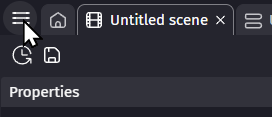
Find the first scene in your game.
Rename your first level to something more descriptive (e.g. Level 1, First Level, etc)
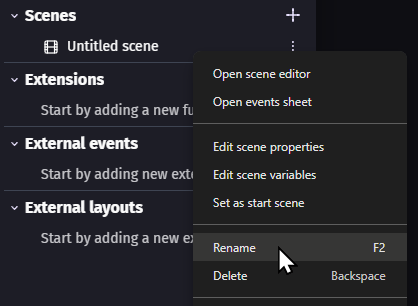
Step 4:
Duplicate your first level by right-clicking on it.
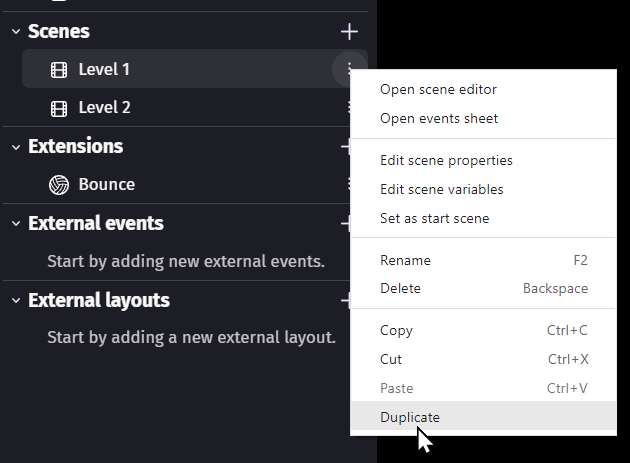
Then, rename the level so you can easily keep track of it.
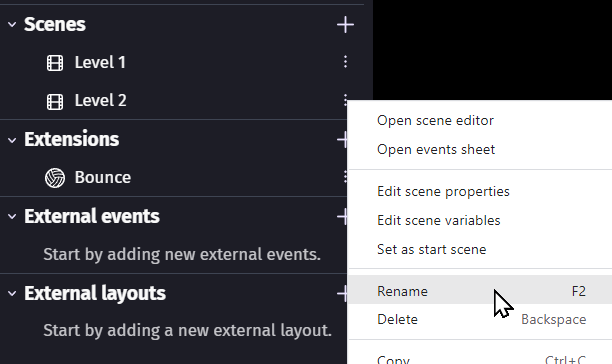
Note: Duplicating a level will copy all of the objects and events for the scene.
Step 5:
Make sure the new level still works in preview mode before moving on.
Make changes to the level so that it has a significantly different appearance or behaves differently.
Things you could change:
-
- Wall arrangement
- Add obstacles
- Add additional balls
- Different scoring system
- Or, lots of other things
Step 6:
Make it so that when you reach a target score in the 1st level, you move to the 2nd level.
-
- Compare the player's score to your target score
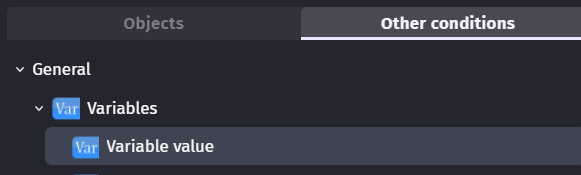
- Compare the player's score to your target score
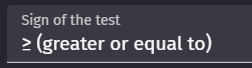
Don't compare using "equal to".
Compare with "greater or equal to".
This way it will your action will happen even if you jump past the target score.
-
- Change the 1st scene to the 2nd scene when the target score is reached

- Each time you start a new scene, be sure to update the score text.

- Change the 1st scene to the 2nd scene when the target score is reached
Step 7:
Add a 3rd level to your game. This level can just be a non-playable "Win Screen" that congratulates the player.
You can use a variety of things to make this screen interesting:
-
- Text
- Objects
- Sound/music
Step 8:
Make the 2nd level move to the 3rd level when you reach a specific score. This means you will have a progression from the 1st level all the way to the 3rd level.
If you add additional levels, be sure to change the target score for each level.
Step 9:
Save your game. Then, preview the game to make sure it is working.
Make any changes that you think are needed. Then, save your project again.
Repeat this step as needed.
Challenge:
Can you think of a creative or different way to design an additional playable level? What would make it challenging, interesting and also fun to play? You could:
-
-
-
- Insert the level before the win screen
- Make the win screen "playable"
- Add the level as a bonus level after winning
- Or, many other possibilities!
-
-
 Grading
| Your submission... | Your grade... |
|---|---|
|
Extended
|
A+ |
|
Exceptional
|
A |
|
Good
|
B |
|
Reasonable
|
C |
|
Needs Improvement
|
D |
|
Insufficient
|
F |
| Scores may be rounded to the nearest whole number. | |