
13: Talking Between Networks
 Learning Target
- Explore why devices on different networks need a router
- Configure IP addresses, subnet masks, and default gateways
- Ping devices on same and different networks
- Inspect local and routed network traffic
 Instructions
In the previous assignment, you built one small local area network, or LAN. All of the computers were connected to a switch and used IP addresses on the same network.
In this assignment, you will build two separate LANs and connect them using a router.
- A switch helps devices communicate inside one network.
- A router helps devices communicate between different networks.
Part 1: Build Two Separate LANs
Step 1: Open FILIUS
Open FILIUS and make sure you are in design mode.
Step 2: Add the devices
Drag these into the workspace and name them in an organized fashion:
- 4 computers or notebooks
- 2 switches
- 1 router (2 NICs)
A NIC is a Network Interface Card. A router needs one network interface for each network it connects to.
You will build two small networks:
- LAN A
- LAN B
Each LAN should have:
- 2 computers
- 1 switch
Some possible finished layouts:
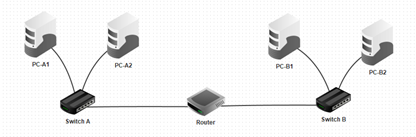
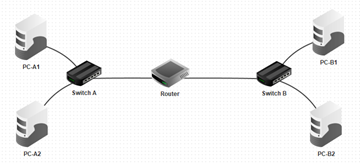
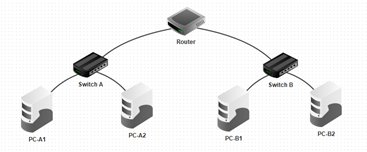
Part 2: Configure the IP Addresses
The two LANs will use different IP networks.
LAN A will use:
192.168.0.x
LAN B will use:
192.168.1.x
We will use a /24 subnet mask. This means the first 3 octets (24-bits) determine the network and the last octet (8-bits) determines the device.
255.255.255.0
For this step, leave the gateway blank. We will configure those later.
Step 1: Configure each computer in LAN A
Click PC-A1 and set:
Name: PC-A1
IP Address: 192.168.0.10
Subnet Mask: 255.255.255.0
Gateway: (leave blank)
Click PC-A2 and set:
Name: PC-A2
IP Address: 192.168.0.11
Subnet Mask: 255.255.255.0
Gateway: (leave blank)
Step 2: Configure each computer in LAN B
Click PC-B1 and set:
Name: PC-B1
IP Address: 192.168.1.10
Subnet Mask: 255.255.255.0
Gateway: (leave blank)
Click PC-B2 and set:
Name: PC-B2
IP Address: 192.168.1.11
Subnet Mask: 255.255.255.0
Gateway: (leave blank)
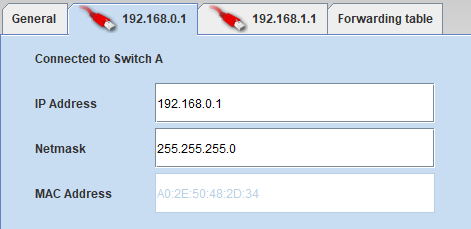
Step 3: Configure the router
The router needs one IP address for each network it connects to.
Set one router interface to:
IP Address: 192.168.0.1
Subnet Mask: 255.255.255.0
Set the other router interface to:
IP Address: 192.168.1.1
Subnet Mask: 255.255.255.0
Part 3: Start the Simulation
Step 1: Switch to simulation mode
Click the green arrow to enter simulation mode.

You may want to slow the simulation speed down so the messages are easier to watch.

Step 2: Install the command line
Click PC-A1.
Use the Software Installation tool to install the Command Line application.

Then install the Command Line application on:
- PC-A2
- PC-B1
- PC-B2
Note: If you cannot install software, your simulation is probably not running.
Part 4: Test Same-LAN Communication Without Gateways
A gateway is not needed when two devices are on the same local network.
First, you will test communication inside each LAN.
Step 1: Ping another computer in LAN A
On PC-A1, open the command line.
Ping PC-A2 by IP address.
This should work because PC-A1 and PC-A2 are on the same local network.
Step 2: Self Check
Can you answer these questions?
- Did the ping from PC-A1 to PC-A2 work?
- Are PC-A1 and PC-A2 on the same LAN?
- How can you tell from their IP addresses?
- Did PC-A1 need a gateway to reach PC-A2?
- What device connects PC-A1 and PC-A2?
Step 3: Ping another computer in LAN B
On PC-B1, open the command line.
Ping PC-B2 by IP address:
This should also work because PC-B1 and PC-B2 are on the same local network.
Step 4: Self Check
Can you answer these questions?
- Did the ping from PC-B1 to PC-B2 work?
- Are PC-B1 and PC-B2 on the same LAN?
- Did PC-B1 need a gateway to reach PC-B2?
- What device connects PC-B1 and PC-B2?
Part 5: Test Cross-LAN Communication Without Gateways
Now you will test communication between the two LANs.
At this point, the computers still do not have gateways configured.
Step 1: Ping a computer on the other LAN
On PC-A1, ping PC-B1. This should fail.
PC-A1 is on a different LAN than PC-B1.
Without a gateway, PC-A1 does not know where to send traffic for another network.
Step 2: Try the opposite direction
On PC-B1, ping PC-A1:
This should also fail.
PC-B1 also does not have a gateway yet.
Step 3: Self Check
Can you answer these questions?
- Did PC-A1 reach PC-B1 without a gateway?
- Did PC-B1 reach PC-A1 without a gateway?
- Why can devices on the same LAN communicate without a gateway?
- Why do devices on different LANs need something extra?
- What device should handle traffic between the two LANs?
Part 6: Configure Gateways
Now you will configure the gateway for the computers in LAN A and LAN B.
The gateway tells a computer where to send traffic that is not part of its local network.
For LAN A, the gateway is the router’s LAN A address:
192.168.0.1Step 1: Configure LAN A
Click the design mode button.
Click PC-A1 and set:
Gateway: 192.168.0.1Click PC-A2 and set:
Gateway: 192.168.0.1
For LAN B, the gateway is the router’s LAN B address:
192.168.1.1
Step 2: Configure LAN B
Click the design mode button.
Click PC-B1 and set:
Gateway: 192.168.1.1
Click PC-B2 and set:
Gateway: 192.168.1.1Part 7: Test Communication Between Networks After Configuring Gateways
Now that all computers have gateways, they should be able to send traffic to the router when the destination is on another network.
Step 1: Test from Network A to Network B
Open the command line on PC-A1.
Ping PC-B1:
ping 192.168.1.10
This should now work.
Step 2: Test from Network B to Network A
Open the command line on PC-B1.
Ping PC-A1:
ping 192.168.0.10
This should also work.
Step 3: Test other devices
Try these pings:
From PC-A2 to PC-B2:
ping 192.168.1.11
From PC-B2 to PC-A2:
ping 192.168.0.11
These should work if the IP addresses, subnet masks, router interfaces, and gateways are correct.
Step 4: Answer the questions
Answer these questions:
- What changed after the gateways were configured?
- Did communication between the two networks work after the gateways were added?
- Why does each network need a different gateway address?
- Why does the router need an address on both networks?
- What would happen if PC-B1 used 192.168.0.1 as its gateway instead of 192.168.1.1?
Part 8: Watch the Network Traffic
Step 1: Show the data exchange for PC-A1
Right-click PC-A1.
Choose Show data exchange.
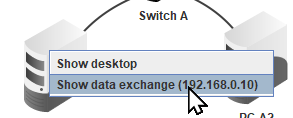
A window will open showing network transmission events.
Step 2: Ping PC-A2
From PC-A1, ping PC-A2:
ping 192.168.0.11
Watch the messages in the data exchange window.
This is same-network communication.
Step 3: Ping PC-B1
From PC-A1, ping PC-B1:
ping 192.168.1.10
Watch the messages in the data exchange window.
This is communication between two different networks.
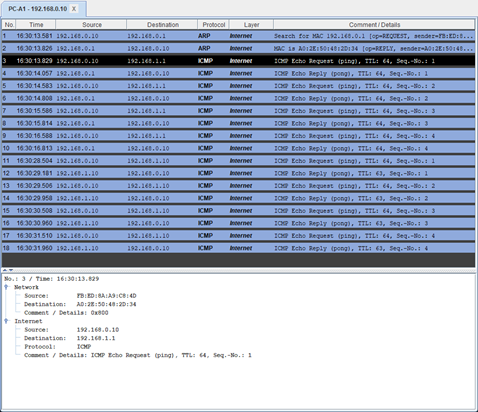
Step 4: Click on the traffic lines
Click different lines in the data exchange window.
Look for information such as:
- Source IP address
- Destination IP address
- Source MAC address
- Destination MAC address
- Protocol
Step 5: Answer the questions
Answer these questions:
- What traffic appeared before the ping messages?
- When PC-A1 pinged PC-A2, which device was PC-A1 trying to find with ARP?
- When PC-A1 pinged PC-B1, which device did PC-A1 need to send the message to first?
- Why does PC-A1 send traffic to the router when the destination is on another network?