
22: Remarkable Rigging
 Learning Target
- Add an armature and create new bones
- Parent a mesh to an armature using automatic weights
 Video Tutorial
 Instructions
Step 1:
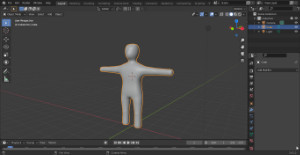
Download and open the base mesh. Or, use the mesh you created in your sculpting assignment. Note: Using your own mesh is rewarding, but may require some adjustments or tweaking.
 |
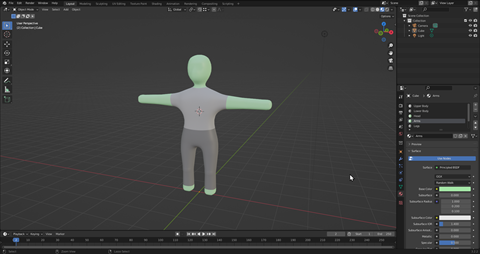 |
| Base Mesh V1.blend | Base Mesh V2.blend |
Be sure to save this project somewhere you will remember. On a lab computer, be sure to save in your H:\ drive.
Then, take a quick look in edit mode to see how the mesh is created. (video walkthrough)
Step 2:
We need to add the armature and do some basic setup.
-
- Set your cursor to the origin (video help)
- Add an armature to your scene (video help)
- Display the armature in front of other objects (video help)
Step 3:
Now, let's start creating the armature. We'll create all the bones along the center and the left side of the body.
-
- Adjust the position of the torso bone (video help)
- Extrude bones for the neck and head (video help)
- Extrude bones for the collar and left arm (video help)
- Extrude bones for the pelvis and left leg (video help)
Step 4:
In order for Blender to understand your rig, we need to name the bones correctly. Be sure to name the left side bones correctly using ".L" at the end of the name.
-
- Name the bones along the axis (video help)
- Name the bones on the left side of the body (video help)
- Do any adjustments needed to the bones (video help)
Step 5:
We'll let Blender create and name the right side of the armature.
-
- Use the symmetrize feature of Blender (video help)
- Use symmetry mode to make final adjustments, if needed (video help)
Step 6:
Now it's time to make the mesh and armature work together. The armature is often called a "rig".
-
- Parent the mesh to the armature with automatic weights (video help)
- Verify that the rig properly controls the mesh (video help)
Step 7:
Before submitting, place your character into a "pose". Then, save and close your project!