
21: Contribute and Review Games
 Learning Target
- Export a GDevelop game in HTML format
- Review the games of others and provide a useful critique
 Instructions
Step 1: Export Your Game from GDevelop
Choose whichever game you would like to publish to the arcade. Open that project in GDevelop.
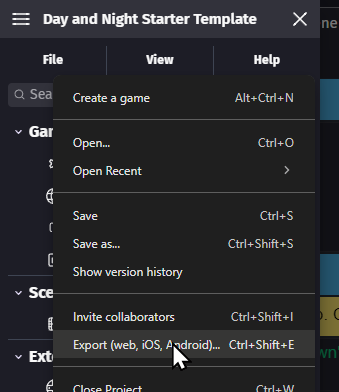
Go to File and choose Export.
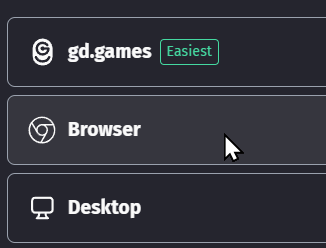
Choose the Browser option — this creates a version of your game that runs in a web browser.
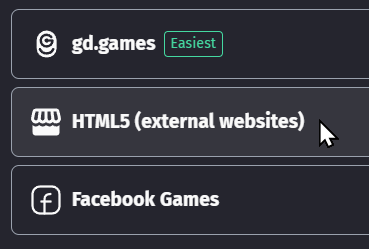
Choose the HTML5 (External Websites) option.
Click Choose folder and then create a new empty folder called "MyGameName_Export"
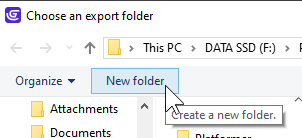
Double-check the folder path you have selected is where you want it to be. It is important the folder is empty.
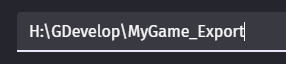
Click the Export as a HTML5 game button
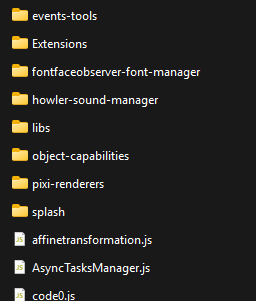
Click the Open the Exported Game Folder button and verify there are numerous game files and folders

Step 2: Package Your Game as a ZIP File
From your export folder, go up one folder.
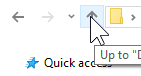
Select the export folder and then right-click on it.
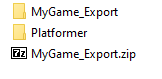
Choose 7-Zip and the Add to "YourGameName_Export.zip" option. Be sure to choose the ZIP option, not the 7Z option.

You should see the Zip file appear below other files and folders:
Step 3: Upload Your Game to the Arcade
Go to arcade.mrhelland.com in your web browser.
- Click Sign in with Google and choose your school account.
- Go to the My Games section:

- Click Submit New Game:
- Fill in the required fields:
- Game Title — the name of your game (2–120 characters)
- Description — at least a sentence or two about your game (minimum 10 characters)
- Note: You remain anonymous to other students unless you include your name here.
- Genre — choose the genre that best fits your game
- Under Game ZIP, upload your ZIP file.
- Upload a Thumbnail image (PNG is preferred).
- If your ZIP already includes a thumbnail image, you can skip this.
- If not, take a screenshot of your game preview window and save it as thumbnail.png.
- You are welcome to edit your thumbnail as long as the edit is school appropriate
- Click Submit Game.
Note: Your game will be reviewed by a moderator before it appears in the gallery. You will be notified when it is published.
Step 4: Review Another Student's Game
Go to arcade.mrhelland.com and browse the games list.
- Find a game made by another student and click on it to play it.
- Play the game for at least a few minutes before writing your review.
- Click the Review button on the game's page.
- Complete all three sections of the review form:
- Open Response — answer both prompts in your own words:
- What I like most about this game is...
- What I would like to see added or changed is...
- Overall Rating — select a score from 1 (Not Yet Functioning) to 10 (Extremely Well Done)
- Rubric — rate the game across 7 categories, each from 1–10:
- Professional Appearance
- Consistent Theme
- Sprites & Backgrounds
- Music & Sounds
- Enjoyment
- Rules & Objectives
- Controls
- Open Response — answer both prompts in your own words:
- Click Submit Review when finished.
Note: Keep your feedback respectful and constructive. Focus on the game, not the person. You cannot review your own game, and reviews cannot be edited after submission.
🏆 About the Leaderboard
The arcade has a leaderboard where you can see how your points compare to your classmates. Points are earned in several ways:
- Submitting a game - you can submit both your games for more points
- Receiving reviews - you can earn a bonus if your game is, on average, reviewed reasonably well
- Writing reviews - you earn points for each review you write. After you've written several reviews, the points you earn for each review begins to slowly taper off
- Review accuracy - if your reviews are reasonably accurate, you will earn a review bonus
- Participation - you will occasionally earn a participation bonus based on how you compare to the average participation of the class
- Review distinctions (e.g. quality or helpful reviews) - if a moderator marks your review as high quality or very helpful, you will receive additional bonus points
Your leaderboard score does not affect your course grade. It is just for fun and a little friendly competition! Your grade is based on the requirements listed in the Grading section — not on how many points you earn in the arcade.
 Grading
| Your submission... | Your grade... |
|---|---|
|
Emerging Developer All requirements for an A are met, plus one or more of the following:
|
A+ |
|
Exceptional
|
A |
|
Good
|
B |
|
Reasonable
|
C |
|
Needs Improvement
|
D |
|
Insufficient
|
F |
| Scores may be rounded to the nearest whole number. | |